
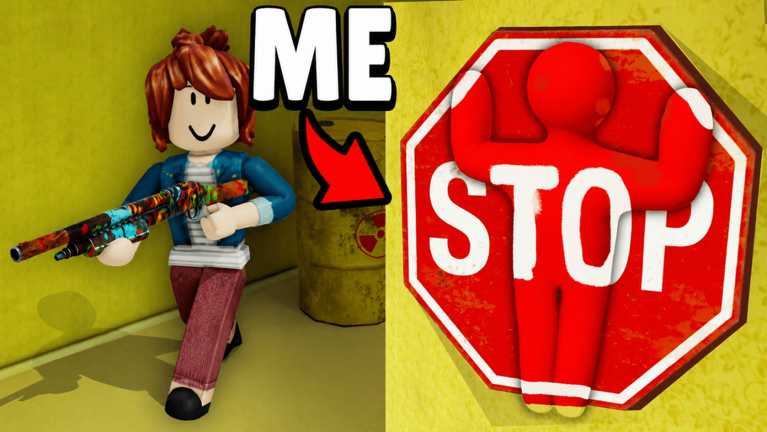
Looking for a Paint and Seek script for Roblox? You are in the right spot for testing out working tools for this camouflage-heavy hide and seek experience.
In Paint and Seek, your main goal is to paint your character to match the walls, floors, and objects around you so you can hide in plain sight. If you are a hider, you survive by blending in while seekers hunt down every corner of the map, and if you get caught, you switch teams to help find the remaining players.
When you want to test out movement and player visibility without dealing with annoying key systems, grab the free scripts below and drop them right into your executor.
Paint and Seek Script – Auto Farm & More
local Players = game:GetService("Players")
local UserInputService = game:GetService("UserInputService")
local RunService = game:GetService("RunService")
local Workspace = game:GetService("Workspace")

local LocalPlayer = Players.LocalPlayer
local Camera = Workspace.CurrentCamera

local ESPEnabled = false
local ESPConnection = nil
local Drawings = {}

local Config = {
    MaxDistance = 1000,
    Key = Enum.KeyCode.R,
}

-- ================== MAIN GUI (Toggle Button) ==================
local ScreenGui = Instance.new("ScreenGui")
ScreenGui.Name = "SimpleESP"
ScreenGui.ResetOnSpawn = false
ScreenGui.Parent = LocalPlayer:WaitForChild("PlayerGui")

local ToggleButton = Instance.new("TextButton")
ToggleButton.Size = UDim2.new(0, 160, 0, 50)
ToggleButton.Position = UDim2.new(0, 20, 0, 20)  -- Top left corner
ToggleButton.BackgroundColor3 = Color3.fromRGB(30, 30, 30)
ToggleButton.TextColor3 = Color3.fromRGB(255, 255, 255)
ToggleButton.Font = Enum.Font.GothamBold
ToggleButton.TextSize = 18
ToggleButton.Text = "ESP: OFF"
ToggleButton.Parent = ScreenGui

local UICorner = Instance.new("UICorner")
UICorner.CornerRadius = UDim.new(0, 12)
UICorner.Parent = ToggleButton

local UIStroke = Instance.new("UIStroke")
UIStroke.Thickness = 2
UIStroke.Color = Color3.fromRGB(80, 80, 80)
UIStroke.Parent = ToggleButton
-- ============================================================

local function GetTeamColor(player)
    if player.Team == LocalPlayer.Team then
        return Color3.fromRGB(0, 255, 100)   -- Green
    else
        return Color3.fromRGB(255, 60, 60)   -- Red
    end
end

local function CreateESP(player)
    if player == LocalPlayer then return end

    local color = GetTeamColor(player)

    Drawings[player] = {
        box = Drawing.new("Square"),
        name = Drawing.new("Text"),
        healthBar = Drawing.new("Square"),
        healthFill = Drawing.new("Square"),
        tracer = Drawing.new("Line")
    }

    local d = Drawings[player]

    d.box.Thickness = 2
    d.box.Filled = false
    d.box.Color = color
    d.box.Transparency = 1

    d.name.Size = 15
    d.name.Center = true
    d.name.Outline = true
    d.name.Color = Color3.fromRGB(255, 255, 255)

    d.healthBar.Color = Color3.fromRGB(0, 0, 0)
    d.healthBar.Transparency = 0.6

    d.healthFill.Color = Color3.fromRGB(0, 255, 80)

    d.tracer.Thickness = 1.5
    d.tracer.Color = color
    d.tracer.Transparency = 0.75
end

local function UpdateESP()
    for player, d in pairs(Drawings) do
        if not player or not player.Character then
            d.box.Visible = false
            d.name.Visible = false
            d.healthBar.Visible = false
            d.healthFill.Visible = false
            d.tracer.Visible = false
            continue
        end

        local char = player.Character
        local root = char:FindFirstChild("HumanoidRootPart")
        local head = char:FindFirstChild("Head")
        local hum = char:FindFirstChildOfClass("Humanoid")

        if not root or not head or not hum or hum.Health <= 0 then
            d.box.Visible = false
            d.name.Visible = false
            d.healthBar.Visible = false
            d.healthFill.Visible = false
            d.tracer.Visible = false
            continue
        end

        local distance = (Camera.CFrame.Position - root.Position).Magnitude
        if distance > Config.MaxDistance then
            d.box.Visible = false
            d.name.Visible = false
            d.healthBar.Visible = false
            d.healthFill.Visible = false
            d.tracer.Visible = false
            continue
        end

        local top, onScreen = Camera:WorldToViewportPoint(head.Position + Vector3.new(0, 3, 0))
        local bottom = Camera:WorldToViewportPoint(root.Position - Vector3.new(0, 3, 0))

        if not onScreen then
            d.box.Visible = false
            d.name.Visible = false
            d.healthBar.Visible = false
            d.healthFill.Visible = false
            d.tracer.Visible = false
            continue
        end

        local height = math.abs(top.Y - bottom.Y)
        local width = height / 2.1

        -- Box
        d.box.Size = Vector2.new(width, height)
        d.box.Position = Vector2.new(top.X - width/2, top.Y)
        d.box.Visible = true

        -- Name + Distance
        d.name.Text = string.format("%s [%dm]", player.Name, math.floor(distance))
        d.name.Position = Vector2.new(top.X, top.Y - 22)
        d.name.Visible = true

        -- Health Bar
        local hpRatio = hum.Health / hum.MaxHealth
        d.healthBar.Size = Vector2.new(5, height)
        d.healthBar.Position = Vector2.new(top.X - width/2 - 10, top.Y)
        d.healthBar.Visible = true

        d.healthFill.Size = Vector2.new(5, height * hpRatio)
        d.healthFill.Position = Vector2.new(top.X - width/2 - 10, top.Y + (height * (1 - hpRatio)))
        d.healthFill.Visible = true

        -- Tracer
        d.tracer.From = Vector2.new(Camera.ViewportSize.X / 2, Camera.ViewportSize.Y)
        d.tracer.To = Vector2.new(top.X, top.Y + height/2)
        d.tracer.Visible = true
    end
end

local function ToggleESP()
    ESPEnabled = not ESPEnabled

    if ESPEnabled then
        ToggleButton.Text = "ESP: ON"
        ToggleButton.BackgroundColor3 = Color3.fromRGB(0, 170, 0)

        -- Create ESP for existing players
        for _, player in ipairs(Players:GetPlayers()) do
            CreateESP(player)
        end

        ESPConnection = RunService.RenderStepped:Connect(UpdateESP)
    else
        ToggleButton.Text = "ESP: OFF"
        ToggleButton.BackgroundColor3 = Color3.fromRGB(170, 0, 0)

        if ESPConnection then
            ESPConnection:Disconnect()
            ESPConnection = nil
        end

        for _, d in pairs(Drawings) do
            for _, drawing in pairs(d) do
                drawing:Remove()
            end
        end
        Drawings = {}
    end
end

-- ================== INPUTS ==================
ToggleButton.MouseButton1Click:Connect(ToggleESP)

UserInputService.InputBegan:Connect(function(input, gp)
    if gp then return end
    if input.KeyCode == Config.Key then
        ToggleESP()
    end
end)

-- Auto create ESP when new player joins
Players.PlayerAdded:Connect(function(player)
    if ESPEnabled then
        CreateESP(player)
    end
end)

-- Cleanup on death
LocalPlayer.CharacterAdded:Connect(function()
    task.wait(1)
    if ESPEnabled then
        for _, d in pairs(Drawings) do
            for _, drawing in pairs(d) do drawing:Remove() end
        end
        Drawings = {}
    end
end)

print("Press R or click the button to toggle")Copy the code above into a compatible Roblox script executor if you choose to test it.
Paint and Seek Script Status
Roblox and game updates can affect compatibility, so the script’s status should be treated as temporary rather than guaranteed.
What Is a Paint and Seek Script?
A Paint and Seek script is Lua code intended to run alongside the Roblox game through a third-party script executor.
Different scripts can contain different code and features. This version includes the following features:
How to Use the Paint and Seek Script
If you decide to test a third-party Roblox script, the general process involves a compatible executor and the Lua code provided above.
Can a Paint and Seek Script Get Your Roblox Account Banned?
- Only use code from a source you trust.
- Never enter your Roblox password into a script or executor.
- Test on an alternate account first.
Paint and Seek Script for Mobile
If you’re searching for a Paint and Seek script for mobile, check whether both the executor and the script support your device and current Roblox version. Mobile executor support does not guarantee that every script will work.
Frequently Asked Questions
What is a Paint and Seek script?
A Paint and Seek script is third-party Lua code intended to run alongside the Roblox game through a compatible script executor.
What features does this Paint and Seek script include?
Different scripts contain different code. This version includes: Auto Farm, Teleport, Fly.
How do you use the Paint and Seek script?
Pick a compatible executor such as Hydrogen, MacSploit, AWP.GG, Delta, Fluxus, Codex, launch Roblox and join the game, copy the complete Lua code from the script card above, paste it into the executor’s editor, and click Run or Execute. Compatibility changes over time, so a name here doesn’t guarantee current support.
Can a Paint and Seek script get your Roblox account banned?
Yes. Third-party scripts can violate Roblox rules and may put an account at risk. Only use code from a source you trust, never enter your Roblox password into a script or executor, and test on an alternate account first.
Does the Paint and Seek script work on mobile?
Check whether both the executor and the script support your device and the current Roblox version. Mobile executor support does not guarantee that every script will work.

