
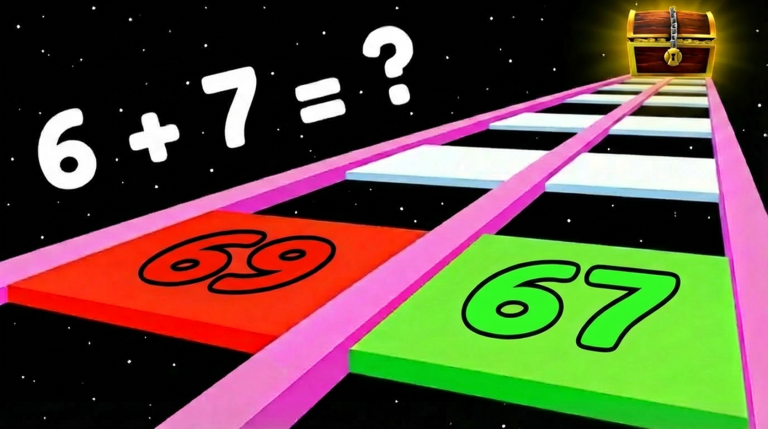
Math Glass Bridge script helps you skip the frustrating math puzzles when you just want to grab rewards with your friends without falling into the void.
You have to pick the right answers on tricky glass panels and make it to the end of the bridge to claim rewards and unlock things like helicopters.
If you want to skip the thinking part and grab your win instantly, you need to grab this working code right now.
Math Glass Bridge Script – [ FEATURES ] & More
local Players = game:GetService("Players")
local RunService = game:GetService("RunService")
local UserInputService = game:GetService("UserInputService")
local TweenService = game:GetService("TweenService")
local LocalPlayer = Players.LocalPlayer

local function getChar() return LocalPlayer.Character or LocalPlayer.CharacterAdded:Wait() end
local function getRoot() local c = getChar() return c:WaitForChild("HumanoidRootPart") end

local function teleportToWin()
    local chest = game.Workspace:FindFirstChild("Chest")
    local targetCFrame = nil

    if chest then
        if chest:IsA("Model") then
            targetCFrame = chest:GetPivot()
        elseif chest:IsA("BasePart") then
            targetCFrame = chest.CFrame
        end
    end

    if targetCFrame then
        local root = getRoot()
        root.CFrame = targetCFrame + Vector3.new(0, 5, 0)
        root.Velocity = Vector3.new(0,0,0)

        task.spawn(function()
            game:GetService("StarterGui"):SetCore("SendNotification", {
                Title = "By Alo's",
                Text = "Teleported to Win!",
                Duration = 1
            })
        end)
    else
        task.spawn(function()
            game:GetService("StarterGui"):SetCore("SendNotification", {
                Title = "By Alo's",
                Text = "Chest not found!",
                Duration = 3
            })
        end)
    end
end

local gui = Instance.new("ScreenGui")
gui.Name = "By_Alos"
gui.Parent = game.CoreGui

local mainFrame = Instance.new("Frame")
mainFrame.Size = UDim2.new(0, 320, 0, 200)
mainFrame.Position = UDim2.new(0.5, -160, 0.5, -100)
mainFrame.BackgroundColor3 = Color3.fromRGB(20, 0, 0)
mainFrame.BackgroundTransparency = 0.1
mainFrame.Active = true
mainFrame.Draggable = true
mainFrame.Parent = gui
mainFrame.Visible = true

local title = Instance.new("TextLabel")
title.Size = UDim2.new(1, 0, 0, 40)
title.Text = "Auto Win!"
title.TextColor3 = Color3.fromRGB(255, 50, 50)
title.BackgroundColor3 = Color3.fromRGB(60, 0, 0)
title.Font = Enum.Font.GothamBold
title.TextSize = 18
title.Parent = mainFrame

local credits = Instance.new("TextLabel")
credits.Size = UDim2.new(0, 150, 0, 20)
credits.Position = UDim2.new(0, 10, 1, -25)
credits.BackgroundTransparency = 1
credits.Text = "By Alo's & Slayer"
credits.TextColor3 = Color3.fromRGB(200, 50, 50)
credits.Font = Enum.Font.GothamBold
credits.TextSize = 12
credits.TextXAlignment = Enum.TextXAlignment.Left
credits.Parent = mainFrame

local versionText = Instance.new("TextLabel")
versionText.Size = UDim2.new(0, 50, 0, 20)
versionText.Position = UDim2.new(1, -60, 1, -25)
versionText.BackgroundTransparency = 1
versionText.Text = "V1"
versionText.TextColor3 = Color3.fromRGB(200, 50, 50)
versionText.Font = Enum.Font.GothamBold
versionText.TextSize = 12
versionText.TextXAlignment = Enum.TextXAlignment.Right
versionText.Parent = mainFrame

local closeBtn = Instance.new("TextButton")
closeBtn.Size = UDim2.new(0, 30, 0, 30)
closeBtn.Position = UDim2.new(1, -35, 0, 5)
closeBtn.Text = "X"
closeBtn.BackgroundColor3 = Color3.fromRGB(100, 0, 0)
closeBtn.TextColor3 = Color3.fromRGB(255, 100, 100)
closeBtn.Font = Enum.Font.GothamBold
closeBtn.Parent = mainFrame

local mainBtn = Instance.new("TextButton")
mainBtn.Size = UDim2.new(0, 280, 0, 60)
mainBtn.Position = UDim2.new(0.5, -140, 0.5, -30)
mainBtn.Text = "Teleport To Win"
mainBtn.BackgroundColor3 = Color3.fromRGB(80, 0, 0)
mainBtn.TextColor3 = Color3.fromRGB(255, 100, 100)
mainBtn.Font = Enum.Font.GothamBold
mainBtn.TextSize = 20
mainBtn.Parent = mainFrame
mainBtn.MouseButton1Click:Connect(function()
    teleportToWin()
end)

local iconFrame = Instance.new("ImageButton")
iconFrame.Size = UDim2.new(0, 60, 0, 60)
iconFrame.Position = UDim2.new(0.9, 0, 0.2, 0)
iconFrame.Image = "rbxassetid://90016208586978"
iconFrame.BackgroundColor3 = Color3.fromRGB(150, 0, 0)
iconFrame.BackgroundTransparency = 0
iconFrame.Visible = false
iconFrame.Parent = gui

local iconCorner = Instance.new("UICorner")
iconCorner.CornerRadius = UDim.new(1, 0)
iconCorner.Parent = iconFrame

local dragging = false
local dragStart, startPos
iconFrame.InputBegan:Connect(function(input)
    if input.UserInputType == Enum.UserInputType.MouseButton1 or input.UserInputType == Enum.UserInputType.Touch then
        dragging = true; dragStart = input.Position; startPos = iconFrame.Position
    end
end)
iconFrame.InputChanged:Connect(function(input)
    if dragging and (input.UserInputType == Enum.UserInputType.MouseMovement or input.UserInputType == Enum.UserInputType.Touch) then
        local delta = input.Position - dragStart
        iconFrame.Position = UDim2.new(startPos.X.Scale, startPos.X.Offset + delta.X, startPos.Y.Scale, startPos.Y.Offset + delta.Y)
    end
end)
UserInputService.InputEnded:Connect(function(input)
    if input.UserInputType == Enum.UserInputType.MouseButton1 or input.UserInputType == Enum.UserInputType.Touch then dragging = false end
end)

closeBtn.MouseButton1Click:Connect(function() mainFrame.Visible = false; iconFrame.Visible = true end)
iconFrame.MouseButton1Click:Connect(function() mainFrame.Visible = true; iconFrame.Visible = false end)

task.wait(1)
game:GetService("StarterGui"):SetCore("SendNotification", {
    Title = "By Alo's",
    Text = "Auto Win Script Loaded!",
    Duration = 3
})Copy the code above into a compatible Roblox script executor if you choose to test it.
Math Glass Bridge Script Status
Roblox and game updates can affect compatibility, so the script’s status should be treated as temporary rather than guaranteed.
Frequently Asked Questions
What is a Math Glass Bridge script?
A Math Glass Bridge script is third-party Lua code intended to run alongside the Roblox game through a compatible script executor.
What features does this Math Glass Bridge script include?
Different scripts contain different code. This version includes: [ FEATURES ], Auto Win (Instant Teleport to Finish), Draggable Custom UI, [ HOW TO USE ], 1. Execute the script., 2. Click the “Teleport To Win” button., 3. Enjoy your victory..
How do you use the Math Glass Bridge script?
Pick a compatible executor such as Hydrogen, MacSploit, AWP.GG, Delta, Fluxus, Codex, launch Roblox and join the game, copy the complete Lua code from the script card above, paste it into the executor’s editor, and click Run or Execute. Compatibility changes over time, so a name here doesn’t guarantee current support.
Can a Math Glass Bridge script get your Roblox account banned?
Yes. Third-party scripts can violate Roblox rules and may put an account at risk. Only use code from a source you trust, never enter your Roblox password into a script or executor, and test on an alternate account first.
Does the Math Glass Bridge script work on mobile?
Check whether both the executor and the script support your device and the current Roblox version. Mobile executor support does not guarantee that every script will work.

