
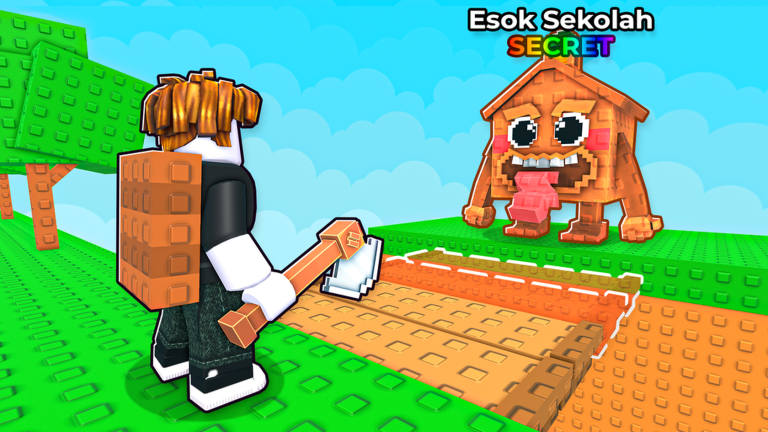
Skipping a slow grind is the best way to enjoy chopping wood without losing your mind, and the Build Bridge to Brainrots script makes that easier than ever.
You grab an axe, cut down trees, and collect wood to rebuild a collapsed bridge. Upgrading your gear helps you haul more materials faster while you work to reach the characters waiting on the other side.
If you want to speed things up and save time on gathering resources, grab the working script below and jump right into the action.
Build Bridge to Brainrots Script – Working Script
local Players = game:GetService("Players")
local ReplicatedStorage = game:GetService("ReplicatedStorage")
local CoreGui = game:GetService("CoreGui")

local Event = ReplicatedStorage.Remotes.TreeEvent
local NotifsEvent = ReplicatedStorage.Remotes.NotifsEvent2
local Player = Players.LocalPlayer

local running = false
local closed = false
local cashTeleporting = false
local notificationConnection
local notificationCount = 0

-- GUI
local ScreenGui = Instance.new("ScreenGui")
ScreenGui.Name = "TreeFarmGUI"
ScreenGui.ResetOnSpawn = false
ScreenGui.Parent = CoreGui

local Frame = Instance.new("Frame")
Frame.Parent = ScreenGui
Frame.Size = UDim2.new(0, 340, 0, 390)
Frame.Position = UDim2.new(0.5, -170, 0.5, -195)
Frame.BackgroundColor3 = Color3.fromRGB(30, 30, 30)
Frame.Active = true
Frame.Draggable = true

local Corner = Instance.new("UICorner")
Corner.Parent = Frame

-- Title
local Title = Instance.new("TextLabel")
Title.Parent = Frame
Title.Size = UDim2.new(1, -40, 0, 35)
Title.Position = UDim2.new(0, 10, 0, 0)
Title.BackgroundTransparency = 1
Title.Text = "Tree Farm"
Title.TextColor3 = Color3.new(1, 1, 1)
Title.TextSize = 17

-- Close
local Close = Instance.new("TextButton")
Close.Parent = Frame
Close.Size = UDim2.new(0, 35, 0, 30)
Close.Position = UDim2.new(1, -35, 0, 0)
Close.Text = "X"
Close.TextColor3 = Color3.new(1, 1, 1)
Close.BackgroundColor3 = Color3.fromRGB(170, 45, 45)

-- Tabs
local TabBar = Instance.new("Frame")
TabBar.Parent = Frame
TabBar.Size = UDim2.new(1, -10, 0, 35)
TabBar.Position = UDim2.new(0, 5, 0, 40)
TabBar.BackgroundTransparency = 1

local function createButton(parent, text, position, size)
    local button = Instance.new("TextButton")
    button.Parent = parent
    button.Size = size
    button.Position = position
    button.BackgroundColor3 = Color3.fromRGB(55, 55, 55)
    button.TextColor3 = Color3.new(1, 1, 1)
    button.TextSize = 14
    button.Text = text

    local corner = Instance.new("UICorner")
    corner.Parent = button

    return button
end

local FarmTab = createButton(
    TabBar, "Farm",
    UDim2.new(0, 0, 0, 0),
    UDim2.new(0.333, -3, 1, 0)
)

local TPTab = createButton(
    TabBar, "TP Menu",
    UDim2.new(0.333, 3, 0, 0),
    UDim2.new(0.333, -3, 1, 0)
)

local NotifTab = createButton(
    TabBar, "Notifications",
    UDim2.new(0.666, 3, 0, 0),
    UDim2.new(0.334, -3, 1, 0)
)

-- Content
local Content = Instance.new("Frame")
Content.Parent = Frame
Content.Size = UDim2.new(1, -20, 1, -90)
Content.Position = UDim2.new(0, 10, 0, 80)
Content.BackgroundTransparency = 1

local function createPage()
    local page = Instance.new("Frame")
    page.Parent = Content
    page.Size = UDim2.new(1, 0, 1, 0)
    page.BackgroundTransparency = 1
    page.Visible = false
    return page
end

local FarmPage = createPage()
local TPPage = createPage()
local NotifPage = createPage()

FarmPage.Visible = true

-- Tree Farm toggle
local Toggle = createButton(
    FarmPage, "OFF",
    UDim2.new(0.5, -80, 0, 25),
    UDim2.new(0, 160, 0, 45)
)

Toggle.BackgroundColor3 = Color3.fromRGB(170, 45, 45)

Toggle.MouseButton1Click:Connect(function()
    running = not running

    Toggle.Text = running and "ON" or "OFF"
    Toggle.BackgroundColor3 = running
        and Color3.fromRGB(45, 170, 65)
        or Color3.fromRGB(170, 45, 45)
end)

-- Teleport helper
local function teleport(x, y, z)
    local character = Player.Character or Player.CharacterAdded:Wait()
    local root = character:WaitForChild("HumanoidRootPart")

    root.CFrame = CFrame.new(x, y, z)
end

-- Cash All button (Tree Farm tab)
local CashButton = createButton(
    FarmPage, "Cash All",
    UDim2.new(0.5, -100, 0, 90),
    UDim2.new(0, 200, 0, 40)
)

-- TP Buttons
local OGButton = createButton(
    TPPage, "OG Zone",
    UDim2.new(0.5, -100, 0, 10),
    UDim2.new(0, 200, 0, 40)
)

local GodButton = createButton(
    TPPage, "God Zone",
    UDim2.new(0.5, -100, 0, 65),
    UDim2.new(0, 200, 0, 40)
)

local SecretButton = createButton(
    TPPage, "Secret Zone",
    UDim2.new(0.5, -100, 0, 120),
    UDim2.new(0, 200, 0, 40)
)

local HomeButton = createButton(
    TPPage, "Home",
    UDim2.new(0.5, -100, 0, 175),
    UDim2.new(0, 200, 0, 40)
)

OGButton.MouseButton1Click:Connect(function()
    teleport(-120.31, 14.05, 1093.09)
end)

GodButton.MouseButton1Click:Connect(function()
    teleport(-118.23, 18.22, 856.93)
end)

SecretButton.MouseButton1Click:Connect(function()
    teleport(-109.47, 21.83, 650.56)
end)

HomeButton.MouseButton1Click:Connect(function()
    teleport(-127.87, 12.00, -153.36)
end)

-- Cash All teleport
CashButton.MouseButton1Click:Connect(function()
    if cashTeleporting then
        cashTeleporting = false
        CashButton.Text = "Cash All"
        return
    end

    cashTeleporting = true
    CashButton.Text = "Stop"

    task.spawn(function()
        local cashFolder = workspace:FindFirstChild("Cash")

        if not cashFolder then
            warn("Cash folder not found")
            cashTeleporting = false
            CashButton.Text = "Cash All"
            return
        end

        local items = cashFolder:GetChildren()

        for _, item in ipairs(items) do
            if not cashTeleporting or closed then
                break
            end

            local part = item:IsA("BasePart")
                and item
                or item:FindFirstChildWhichIsA("BasePart", true)

            if part then
                local position = part.Position
                teleport(position.X, position.Y + 3, position.Z)
                task.wait(0.5)
            end
        end

        cashTeleporting = false

        if not closed then
            CashButton.Text = "Cash All"
        end
    end)
end)

-- Notifications
local NotifTitle = Instance.new("TextLabel")
NotifTitle.Parent = NotifPage
NotifTitle.Size = UDim2.new(1, 0, 0, 25)
NotifTitle.BackgroundTransparency = 1
NotifTitle.Text = "Live Events"
NotifTitle.TextColor3 = Color3.new(1, 1, 1)
NotifTitle.TextSize = 16

local NotifList = Instance.new("ScrollingFrame")
NotifList.Parent = NotifPage
NotifList.Position = UDim2.new(0, 0, 0, 30)
NotifList.Size = UDim2.new(1, 0, 1, -30)
NotifList.BackgroundColor3 = Color3.fromRGB(22, 22, 22)
NotifList.BorderSizePixel = 0
NotifList.ScrollBarThickness = 4
NotifList.CanvasSize = UDim2.new(0, 0, 0, 0)
NotifList.AutomaticCanvasSize = Enum.AutomaticSize.Y

local ListLayout = Instance.new("UIListLayout")
ListLayout.Parent = NotifList
ListLayout.Padding = UDim.new(0, 5)
ListLayout.SortOrder = Enum.SortOrder.LayoutOrder

local Padding = Instance.new("UIPadding")
Padding.Parent = NotifList
Padding.PaddingTop = UDim.new(0, 5)
Padding.PaddingLeft = UDim.new(0, 5)
Padding.PaddingRight = UDim.new(0, 5)

local function addNotification(message, category)
    notificationCount += 1

    local Item = Instance.new("TextLabel")
    Item.Parent = NotifList
    Item.Size = UDim2.new(1, -10, 0, 48)
    Item.BackgroundColor3 = Color3.fromRGB(45, 45, 45)
    Item.TextColor3 = Color3.new(1, 1, 1)
    Item.TextSize = 13
    Item.TextWrapped = true
    Item.LayoutOrder = -notificationCount
    Item.Text = "[" .. tostring(category) .. "] " .. tostring(message)

    local ItemCorner = Instance.new("UICorner")
    ItemCorner.Parent = Item

    local items = {}

    for _, child in ipairs(NotifList:GetChildren()) do
        if child:IsA("TextLabel") then
            table.insert(items, child)
        end
    end

    if #items > 50 then
        table.sort(items, function(a, b)
            return a.LayoutOrder > b.LayoutOrder
        end)

        items[1]:Destroy()
    end
end

-- Listen for server notifications
notificationConnection = NotifsEvent.OnClientEvent:Connect(function(message, category)
    if closed then return end

    if typeof(message) == "string" then
        addNotification(message, category)
        warn("[EVENT] " .. message .. " | " .. tostring(category))
    end
end)

-- Tab switching
local function showPage(page)
    FarmPage.Visible = page == "Farm"
    TPPage.Visible = page == "TP"
    NotifPage.Visible = page == "Notifications"

    Title.Text = page == "Farm" and "Tree Farm"
        or page == "TP" and "TP Menu"
        or "Notifications"
end

FarmTab.MouseButton1Click:Connect(function()
    showPage("Farm")
end)

TPTab.MouseButton1Click:Connect(function()
    showPage("TP")
end)

NotifTab.MouseButton1Click:Connect(function()
    showPage("Notifications")
end)

-- Close GUI
Close.MouseButton1Click:Connect(function()
    closed = true
    running = false
    cashTeleporting = false

    if notificationConnection then
        notificationConnection:Disconnect()
    end

    ScreenGui:Destroy()
end)

-- Tree Farm loop
task.spawn(function()
    while not closed do
        if running then
            Event:FireServer("4", 1)
            task.wait(0.2)
        else
            task.wait(0.1)
        end
    end
end)Copy the code above into a compatible Roblox script executor if you choose to test it.
Build Bridge to Brainrots Script Status
Roblox and game updates can affect compatibility, so the script’s status should be treated as temporary rather than guaranteed.
Frequently Asked Questions
What is a Build Bridge to Brainrots script?
A Build Bridge to Brainrots script is third-party Lua code intended to run alongside the Roblox game through a compatible script executor.
What features does this Build Bridge to Brainrots script include?
Different scripts contain different code and features. Check the script menu after it loads to see everything it offers.
How do you use the Build Bridge to Brainrots script?
Pick a compatible executor such as Hydrogen, MacSploit, AWP.GG, Delta, Fluxus, Codex, launch Roblox and join the game, copy the complete Lua code from the script card above, paste it into the executor’s editor, and click Run or Execute. Compatibility changes over time, so a name here doesn’t guarantee current support.
Can a Build Bridge to Brainrots script get your Roblox account banned?
Yes. Third-party scripts can violate Roblox rules and may put an account at risk. Only use code from a source you trust, never enter your Roblox password into a script or executor, and test on an alternate account first.
Does the Build Bridge to Brainrots script work on mobile?
Check whether both the executor and the script support your device and the current Roblox version. Mobile executor support does not guarantee that every script will work.

