Keeping up after a new update in Countryball World script gets a lot easier when you have the right trick up your sleeve. Nobody wants to spend hours trying to figure out subtle server tools while everyone else is already making a mess. Grabbing the right setup lets you skip the boring parts and get straight to the fun stuff.
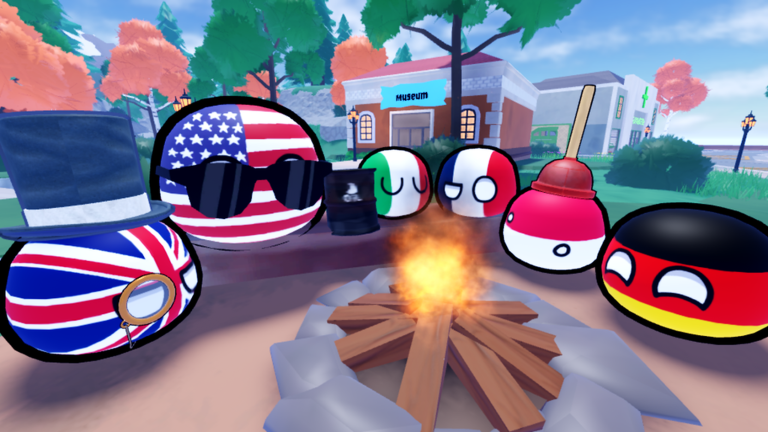
You basically roleplay as your favorite countries, explore the big world map, and collect badges to unlock cool hats and new countryballs. There are even horses and muskets to mess around with now. But if you want to cause some real chaos and leave people guessing, you need a solid script to shake things up.
We tested out a working tool that lets you stir up the entire lobby without getting caught right away. If you are ready to mess with your friends and watch the whole chat try to figure out what is happening, grab the code below and jump back in.
Countryball World Script – FP tool & More
-- Roblox LocalScript: Debug Click-to-Paint
local Players = game:GetService("Players")
local UserInputService = game:GetService("UserInputService")
local ReplicatedStorage = game:GetService("ReplicatedStorage")
local LocalPlayer = Players.LocalPlayer

local isPaintingEnabled = false

-- GUI Creation
local ScreenGui = Instance.new("ScreenGui")
ScreenGui.Name = "DebugPainterGui"
ScreenGui.ResetOnSpawn = false
ScreenGui.Parent = LocalPlayer:WaitForChild("PlayerGui")

local Frame = Instance.new("Frame")
Frame.Size = UDim2.new(0, 160, 0, 80)
Frame.Position = UDim2.new(0.05, 0, 0.4, 0)
Frame.BackgroundColor3 = Color3.fromRGB(30, 30, 30)
Frame.Active = true
Frame.Draggable = true
Frame.Parent = ScreenGui

local UICorner = Instance.new("UICorner")
UICorner.CornerRadius = UDim.new(0, 10)
UICorner.Parent = Frame

local ToggleButton = Instance.new("TextButton")
ToggleButton.Size = UDim2.new(0.85, 0, 0.6, 0)
ToggleButton.Position = UDim2.new(0.075, 0, 0.2, 0)
ToggleButton.BackgroundColor3 = Color3.fromRGB(180, 40, 40)
ToggleButton.Text = "PAINTER: OFF"
ToggleButton.TextColor3 = Color3.fromRGB(255, 255, 255)
ToggleButton.TextSize = 14
ToggleButton.Font = Enum.Font.SourceSansBold
ToggleButton.Parent = Frame

local ButtonCorner = Instance.new("UICorner")
ButtonCorner.CornerRadius = UDim.new(0, 8)
ButtonCorner.Parent = ToggleButton

-- Remote Finder with Logs
local function getPaintRemote()
	-- Check Backpack tool first since original code used it
	local tool = LocalPlayer.Backpack:FindFirstChild("Paint")
		or (LocalPlayer.Character and LocalPlayer.Character:FindFirstChild("Paint"))
	if tool and tool:FindFirstChild("PaintRemote") then
		print("[Debug] Found PaintRemote in tool!")
		return tool.PaintRemote
	end

	local remote = ReplicatedStorage:FindFirstChild("PaintRemote", true)
	if remote then
		print("[Debug] Found PaintRemote in ReplicatedStorage!")
		return remote
	end

	print("[Debug] ERROR: Could not find PaintRemote anywhere!")
	return nil
end

ToggleButton.MouseButton1Click:Connect(function()
	isPaintingEnabled = not isPaintingEnabled
	if isPaintingEnabled then
		ToggleButton.Text = "PAINTER: ON"
		ToggleButton.BackgroundColor3 = Color3.fromRGB(40, 180, 40)
		print("[Debug] Painter turned ON")
	else
		ToggleButton.Text = "PAINTER: OFF"
		ToggleButton.BackgroundColor3 = Color3.fromRGB(180, 40, 40)
		print("[Debug] Painter turned OFF")
	end
end)

UserInputService.InputBegan:Connect(function(input, gameProcessed)
	if gameProcessed or not isPaintingEnabled then return end

	if input.UserInputType == Enum.UserInputType.MouseButton1 or input.UserInputType == Enum.UserInputType.Touch then
		local mouseLocation = UserInputService:GetMouseLocation()
		local camera = workspace.CurrentCamera
		if not camera then return end

		local ray = camera:ViewportPointToRay(mouseLocation.X, mouseLocation.Y)
		local raycastParams = RaycastParams.new()
		raycastParams.FilterType = Enum.RaycastFilterType.Include

		-- Let's check entire workspace if PaintableMap isn't exact, or filter it
		local paintableMap = workspace:FindFirstChild("PaintableMap")
		if paintableMap then
			raycastParams.FilterDescendantsInstances = {paintableMap}
			local result = workspace:Raycast(ray.Origin, ray.Direction * 1000, raycastParams)

			if result and result.Instance then
				print("[Debug] Clicked part:", result.Instance:GetFullName())
				local remote = getPaintRemote()
				if remote then
					local randColor = Color3.new(math.random(), math.random(), math.random())
					print("[Debug] Firing server with part and color...")
					remote:FireServer(result.Instance, randColor)
				end
			else
				print("[Debug] Raycast didn't hit anything inside PaintableMap.")
			end
		else
		print("[Debug] ERROR: 'PaintableMap' folder not found in workspace!")
		end
	end
end)Copy the code above into a compatible Roblox script executor if you choose to test it.
Countryball World Script Status
Roblox and game updates can affect compatibility, so the script’s status should be treated as temporary rather than guaranteed.
Frequently Asked Questions
What is a Countryball World script?
A Countryball World script is third-party Lua code intended to run alongside the Roblox game through a compatible script executor.
What features does this Countryball World script include?
Different scripts contain different code. This version includes: FP tool, (SILENT PAINTER) made by yippi studios.
How do you use the Countryball World script?
Pick a compatible executor such as Hydrogen, MacSploit, AWP.GG, Delta, Fluxus, Codex, launch Roblox and join the game, copy the complete Lua code from the script card above, paste it into the executor’s editor, and click Run or Execute. Compatibility changes over time, so a name here doesn’t guarantee current support.
Can a Countryball World script get your Roblox account banned?
Yes. Third-party scripts can violate Roblox rules and may put an account at risk. Only use code from a source you trust, never enter your Roblox password into a script or executor, and test on an alternate account first.
Does the Countryball World script work on mobile?
Check whether both the executor and the script support your device and the current Roblox version. Mobile executor support does not guarantee that every script will work.

