
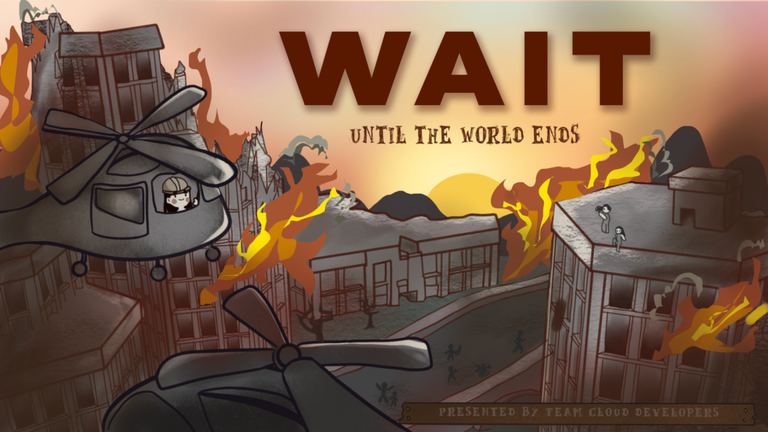
Grinding out resources before the sun blows up gets old fast, so adding the Wait Until The World Ends script helps you skip the boring manual labor.
You only get thirty days before the world explodes in this sandbox survival game, meaning every second spent swinging a basic shovel counts. You need to mine the land, craft gear, climb the tech ladder, and build up a solid base before the wind picks up and the grass dies.
Since you want to spend less time hitting rocks and more time surviving the apocalypse, grab the working code below and get to work.
Wait Until The World Ends Script – £50 PAID ONLY & More
-- Ensure old GUI is cleanly removed before running
local ExistingGui = game:GetService("CoreGui"):FindFirstChild("AutoDigGUI") or game:GetService("Players").LocalPlayer:WaitForChild("PlayerGui"):FindFirstChild("AutoDigGUI")
if ExistingGui then ExistingGui:Destroy() end

-- Main Containers
local ScreenGui = Instance.new("ScreenGui")
local MainFrame = Instance.new("Frame")
local TopBar = Instance.new("Frame")
local Title = Instance.new("TextLabel")
local MinimizeBtn = Instance.new("TextButton")
local ToggleBtn = Instance.new("TextButton")
local HardToggleBtn = Instance.new("TextButton")

local UICorner_Main = Instance.new("UICorner")
local UICorner_Top = Instance.new("UICorner")
local UICorner_Btn = Instance.new("UICorner")
local UICorner_HardBtn = Instance.new("UICorner")

ScreenGui.Name = "AutoDigGUI"
ScreenGui.Parent = game:GetService("CoreGui") or game:GetService("Players").LocalPlayer:WaitForChild("PlayerGui")
ScreenGui.ResetOnSpawn = false

-- Base Window Frame
MainFrame.Name = "MainFrame"
MainFrame.Size = UDim2.new(0, 220, 0, 185)
MainFrame.Position = UDim2.new(0.5, -110, 0.4, -92)
MainFrame.BackgroundColor3 = Color3.fromRGB(30, 30, 35)
MainFrame.BorderSizePixel = 0
MainFrame.Active = true
MainFrame.Parent = ScreenGui

UICorner_Main.CornerRadius = UDim.new(0, 10)
UICorner_Main.Parent = MainFrame

-- Draggable Top Bar
TopBar.Name = "TopBar"
TopBar.Size = UDim2.new(1, 0, 0, 35)
TopBar.BackgroundColor3 = Color3.fromRGB(40, 40, 47)
TopBar.BorderSizePixel = 0
TopBar.Parent = MainFrame

UICorner_Top.CornerRadius = UDim.new(0, 10)
UICorner_Top.Parent = TopBar

-- Window Title
Title.Size = UDim2.new(1, -40, 1, 0)
Title.Position = UDim2.new(0, 10, 0, 0)
Title.BackgroundTransparency = 1
Title.Text = "V3 Instant-Toggle"
Title.TextColor3 = Color3.fromRGB(240, 240, 240)
Title.TextSize = 14
Title.Font = Enum.Font.SourceSansBold
Title.TextXAlignment = Enum.TextXAlignment.Left
Title.Parent = TopBar

-- Minimize Button
MinimizeBtn.Name = "MinimizeBtn"
MinimizeBtn.Size = UDim2.new(0, 30, 0, 30)
MinimizeBtn.Position = UDim2.new(1, -35, 0, 2)
MinimizeBtn.BackgroundTransparency = 1
MinimizeBtn.Text = "−"
MinimizeBtn.TextColor3 = Color3.fromRGB(200, 200, 200)
MinimizeBtn.TextSize = 20
MinimizeBtn.Font = Enum.Font.SourceSansBold
MinimizeBtn.Parent = TopBar

-- Main Regular Dig Toggle Button
ToggleBtn.Name = "ToggleBtn"
ToggleBtn.Size = UDim2.new(0, 180, 0, 45)
ToggleBtn.Position = UDim2.new(0.5, -90, 0, 50)
ToggleBtn.BackgroundColor3 = Color3.fromRGB(220, 50, 50)
ToggleBtn.Text = "Auto Dig: OFF"
ToggleBtn.TextColor3 = Color3.fromRGB(255, 255, 255)
ToggleBtn.TextSize = 16
ToggleBtn.Font = Enum.Font.SourceSansSemibold
ToggleBtn.Parent = MainFrame

UICorner_Btn.CornerRadius = UDim.new(0, 8)
UICorner_Btn.Parent = ToggleBtn

-- Cobblestone (DigHard) Toggle Button
HardToggleBtn.Name = "HardToggleBtn"
HardToggleBtn.Size = UDim2.new(0, 180, 0, 45)
HardToggleBtn.Position = UDim2.new(0.5, -90, 0, 115)
HardToggleBtn.BackgroundColor3 = Color3.fromRGB(220, 50, 50)
HardToggleBtn.Text = "Auto Cobble: OFF"
HardToggleBtn.TextColor3 = Color3.fromRGB(255, 255, 255)
HardToggleBtn.TextSize = 16
HardToggleBtn.Font = Enum.Font.SourceSansSemibold
HardToggleBtn.Parent = MainFrame

UICorner_HardBtn.CornerRadius = UDim.new(0, 8)
UICorner_HardBtn.Parent = HardToggleBtn

-- ==========================================
-- Modern Smooth Dragging Engine
-- ==========================================
local UserInputService = game:GetService("UserInputService")
local dragging, dragInput, dragStart, startPos

local function update(input)
    local delta = input.Position - dragStart
    MainFrame.Position = UDim2.new(startPos.X.Scale, startPos.X.Offset + delta.X, startPos.Y.Scale, startPos.Y.Offset + delta.Y)
end

TopBar.InputBegan:Connect(function(input)
    if input.UserInputType == Enum.UserInputType.MouseButton1 or input.UserInputType == Enum.UserInputType.Touch then
        dragging = true
        dragStart = input.Position
        startPos = MainFrame.Position

        input.Changed:Connect(function()
            if input.UserInputState == Enum.UserInputState.End then
                dragging = false
            end
        end)
    end
end)

TopBar.InputChanged:Connect(function(input)
    if input.UserInputType == Enum.UserInputType.MouseMovement or input.UserInputType == Enum.UserInputType.Touch then
        dragInput = input
    end
end)

UserInputService.InputChanged:Connect(function(input)
    if input == dragInput and dragging then
        update(input)
    end
end)

-- ==========================================
-- Minimize/Maximize Engine
-- ==========================================
local isMinimized = false
MinimizeBtn.MouseButton1Click:Connect(function()
    isMinimized = not isMinimized
    if isMinimized then
        ToggleBtn.Visible = false
        HardToggleBtn.Visible = false
        MainFrame.Size = UDim2.new(0, 220, 0, 35)
        MinimizeBtn.Text = "+"
    else
        MainFrame.Size = UDim2.new(0, 220, 0, 185)
        ToggleBtn.Visible = true
        HardToggleBtn.Visible = true
        MinimizeBtn.Text = "−"
    end
end)

-- ==========================================
-- Common Variables & Services
-- ==========================================
local Players = game:GetService("Players")

_G.AutoDigEnabled = false
_G.AutoCobbleEnabled = false

-- ==========================================
-- Thread 1: Regular Auto-Dig (Instant Shutoff)
-- ==========================================
ToggleBtn.MouseButton1Click:Connect(function()
    _G.AutoDigEnabled = not _G.AutoDigEnabled

    if _G.AutoDigEnabled then
        ToggleBtn.BackgroundColor3 = Color3.fromRGB(50, 180, 50)
        ToggleBtn.Text = "Auto Dig: ON"

        task.spawn(function()
            while _G.AutoDigEnabled do
                local player = Players.LocalPlayer
                local character = player and player.Character
                local rootPart = character and character:FindFirstChild("HumanoidRootPart")
                local digger = character and character:FindFirstChild("Digger")

                if digger and rootPart then
                    local blockFill = digger:FindFirstChild("BlockFill")
                    if blockFill and _G.AutoDigEnabled then
                        local args = {
                            rootPart.Position,
                            2,
                            true,
                            false,
                            false,
                            0,
                            workspace:WaitForChild("Terrain"),
                            "Dig"
                        }

                        pcall(function()
                            blockFill:FireServer(unpack(args))
                        end)
                    end
                end
                task.wait(0.1) -- Fast loop delay without click-clashing lag
            end
        end)
    else
        ToggleBtn.BackgroundColor3 = Color3.fromRGB(220, 50, 50)
        ToggleBtn.Text = "Auto Dig: OFF"
    end
end)

-- ==========================================
-- Thread 2: Cobblestone Auto-Dig (Instant Shutoff)
-- ==========================================
HardToggleBtn.MouseButton1Click:Connect(function()
    _G.AutoCobbleEnabled = not _G.AutoCobbleEnabled

    if _G.AutoCobbleEnabled then
        HardToggleBtn.BackgroundColor3 = Color3.fromRGB(50, 180, 50)
        HardToggleBtn.Text = "Auto Cobble: ON"

        task.spawn(function()
            while _G.AutoCobbleEnabled do
                local player = Players.LocalPlayer
                local character = player and player.Character
                local rootPart = character and character:FindFirstChild("HumanoidRootPart")
                local digger = character and character:FindFirstChild("Digger")

                if digger and rootPart then
                    local blockFill = digger:FindFirstChild("BlockFill")
                    if blockFill and _G.AutoCobbleEnabled then
                        local args = {
                            rootPart.Position,
                            2,
                            false,
                            true,
                            false,
                            0,
                            workspace:WaitForChild("Terrain"),
                            "DigHard"
                        }

                        pcall(function()
                            blockFill:FireServer(unpack(args))
                        end)
                    end
                end
                task.wait(0.1) -- Fast loop delay without click-clashing lag
            end
        end)
    else
        HardToggleBtn.BackgroundColor3 = Color3.fromRGB(220, 50, 50)
        HardToggleBtn.Text = "Auto Cobble: OFF"
    end
end)Copy the code above into a compatible Roblox script executor if you choose to test it.
Wait Until The World Ends Script Status
Roblox and game updates can affect compatibility, so the script’s status should be treated as temporary rather than guaranteed.
Frequently Asked Questions
What is a Wait Until The World Ends script?
A Wait Until The World Ends script is third-party Lua code intended to run alongside the Roblox game through a compatible script executor.
What features does this Wait Until The World Ends script include?
Different scripts contain different code. This version includes: £50 PAID ONLY.
How do you use the Wait Until The World Ends script?
Pick a compatible executor such as Hydrogen, MacSploit, AWP.GG, Delta, Fluxus, Codex, launch Roblox and join the game, copy the complete Lua code from the script card above, paste it into the executor’s editor, and click Run or Execute. Compatibility changes over time, so a name here doesn’t guarantee current support.
Can a Wait Until The World Ends script get your Roblox account banned?
Yes. Third-party scripts can violate Roblox rules and may put an account at risk. Only use code from a source you trust, never enter your Roblox password into a script or executor, and test on an alternate account first.
Does the Wait Until The World Ends script work on mobile?
Check whether both the executor and the script support your device and the current Roblox version. Mobile executor support does not guarantee that every script will work.

